Squarespace Design Hack: FAQ Accordion Menu

Squarespace by itself has a lot of built in features and capabilities to make your website beautiful and stand out. However, there are some “design hacks” to customize your website even further.
Today, the Brad Good team is going to show you simple steps on how to implement the FAQ Accordion Menu on your website.
Why Use The FAQ Accordion
This design hack is awesome because of its simplicity to use, and also allows the user to take up a lot less space on their website. You can use the FAQ Accordion for anything on your website that would need to be broken up into sections. Here is a real example of this process put to use. https://www.wetreadwell.com/faqs/
Easy To Follow Code
If you haven’t added any code to your website before, don’t be alarmed. Below are easy to follow steps on how to implement this design hack on your website.
Step 1.
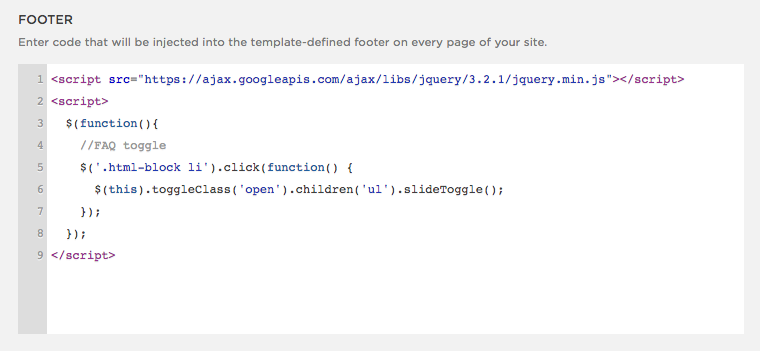
Take the code below and insert it into your site-wide Code Injection.
Note: If you are using a Parallax Scrolling template, see Step 1a.
<script src="https://ajax.googleapis.com/ajax/libs/jquery/3.2.1/jquery.min.js"></script>
<script>
  window.Squarespace.onInitialize(Y, function(){
    //FAQ toggle
    $('.html-block li').click(function() {
      $(this).toggleClass('open').children('ul').slideToggle();
    });
  });
</script>
Note: You can find where to add this by going into, (Settings > Advanced > Code Injection and paste the code into the Footer section).
Step 1a.
For sites using one of the parallax templates you will need to use the following script to fix a positioning issue when an item is "open".
Templates: Brine, Aria, Basil, Burke, Cacao, Clay, Ethan, Fairfield, Feed, Foster, Greenwich, Hatch, Heights, Hunter, Hyde, Jaunt, Juke, Keene, Lincoln, Maple, Margot, Marta, Mentor, Mercer, Miller, Mojave, Moksha, Motto, Nueva, Polaris, Rally, Rover, Sofia, Sonny, Sonora, Thorne, Wav, West
(Discontinued) Marquee, Adversary, Alex, Eamon, Ginger, Mint, Shift
<script src="https://ajax.googleapis.com/ajax/libs/jquery/3.2.1/jquery.min.js"></script>
<script>
  window.Squarespace.onInitialize(Y, function(){
    //FAQ toggle
    $('.html-block li').click(function() {
      $(this).toggleClass('open').children('ul').slideToggle();
      setTimeout(function(){
        window.dispatchEvent(new Event('resize'));
      }, 300);
    });
  });
</script>
Step 2.
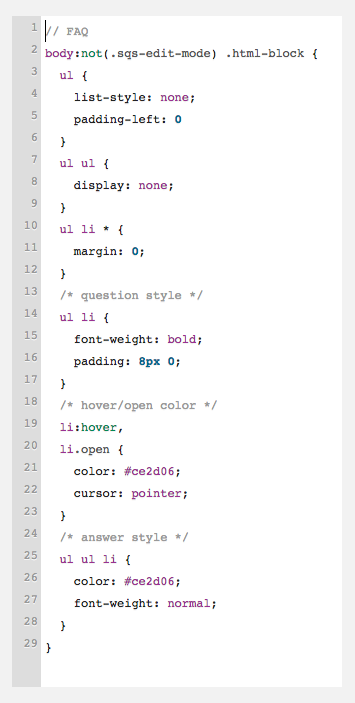
The next step is to place the below code in your Custom CSS. This is a very basic setup, but is easy to customize.
Note: You can find where to add this by going into, (Settings > Design > Custom CSS).
// FAQ
body:not(.sqs-edit-mode) .html-block {
  ul {
    list-style: none;
    padding-left: 0
  }
  ul ul {
    display: none;
  }
  ul li * {
    margin: 0;
  }
  /* question style */
  ul li {
    font-weight: bold;
    padding: 8px 0;
  }
  /* hover/open color */
  li:hover,
    li.open {
      color: #ce2d06;
      cursor: pointer;
  }
  /* answer style */
  ul ul li {
    color: #ce2d06;
    font-weight: normal;
  }
}
Step 3.
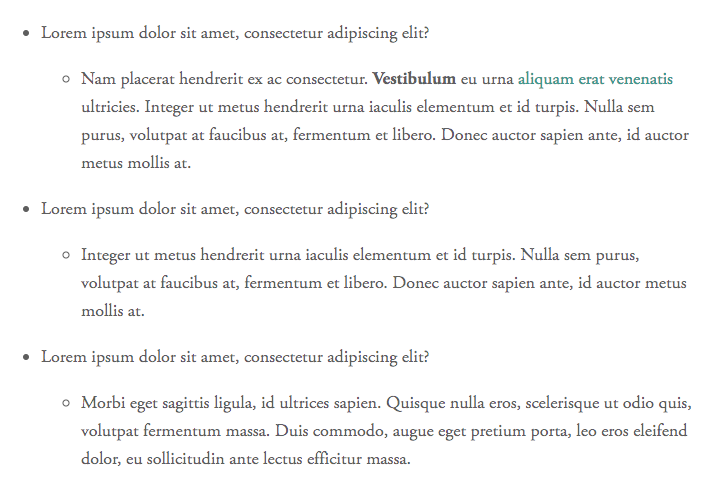
Once you reach this step, it is time to create your very own FAQ Accordion menu. Start by inserting a Text Block on the page where you want to add the menu, then press the Bulleted List button in the toolbar. (The one with the 2 dots)

Type out the first question, then press "return/enter" on your keyboard. Then "tab" to indent the next line, which is the answer. When you are finished with the answer, press "shift tab" to un-indent the line and you are ready to type the next question. This behavior is the same as Word many other document editors.
Step 4.
Congrats! After you entered your information, click on save and refresh and your FAQ Accordion should be all set!
Note: The FAQ Accordion will look like a regular bulleted list in edit mode.
FAQ Accordion Design Hack Completed
You’ll notice right away after you add the FAQ Accordion that it helps separate your design from others because of its custom look. Let us know in the comments below what you think about this hack and leave a comment if you want to learn about any others!